
Student Attendance Tracking App – Powered by Bluetooth, WiFi, and RFID
During school, teachers would typically pass around a piece of paper in the classroom to check whether students attended class or not, signing each one individually. Teachers would also call out students' names and mark their attendance on a list to track their attendance. When I first started developing the app, I came up with the idea. My probability and statistics teacher, who later mentored me on the project in my business administration class, helped me implement the project on Android. Work began on taking student attendance using Bluetooth, RFID, and Wi-Fi.
To summarize the project's usage: The instructor of the course that will take attendance must first register the courses they will attend through the system. Initially, the data isn't fed from a single source; it's only stored in the device's local database. However, in the long term, school courses will be integrated into the system, and the instructor will log in with their username and password, check the current course time and schedule, and initiate attendance. When taking attendance, students are required to provide their Bluetooth and Wi-Fi addresses as their student numbers (10 digits), followed by a hyphen (-), and their names. This way, the instructor can distinguish them from other shared device names when taking attendance. For example, they are expected to record them as 1611404001 - Rifai KUÇİ. To prevent students from being visible on both Wi-Fi and Bluetooth devices, a filter is applied based on the device's unique key. This prevents two people from using the same device. If Bluetooth or Wi-Fi are not working, you can scan your student ID card on the device that is used to record attendance. In the worst case scenario, you can manually add attendance from the device to complete the attendance calculation. Once the attendance calculation is complete, it can be saved and shared in Excel format via email or any other means.
App Screenshots - Home Page
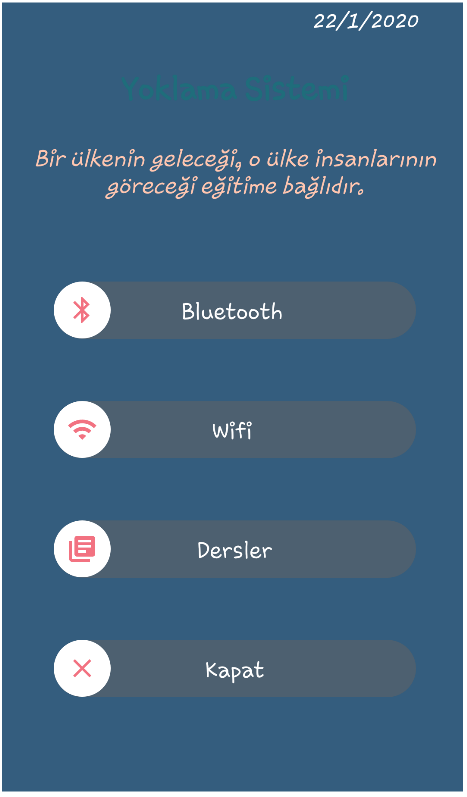
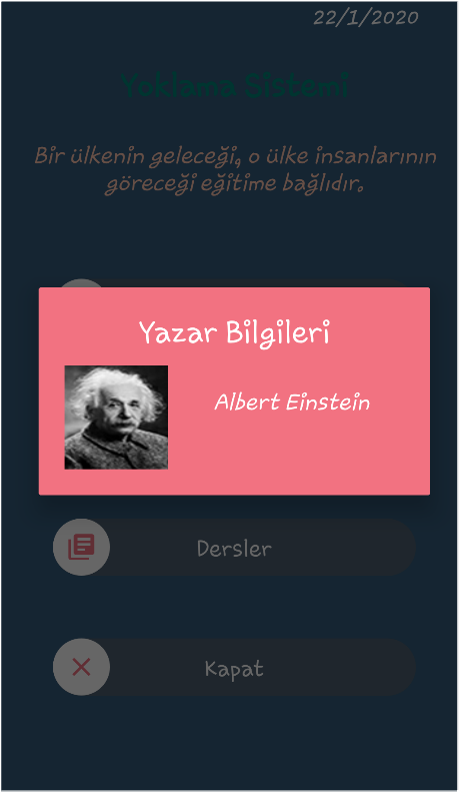
When the app is first opened, you can navigate between screens with a swipe, as shown above. The instructor must first record the lessons in the lessons section and then initiate attendance via Wi-Fi or Bluetooth. Standing still may not be optimal, as the reception from one end to the other, especially in a lecture hall, may be difficult. Therefore, taking attendance by briefly walking around the room can speed up attendance.
Application Screenshots - Course Operations
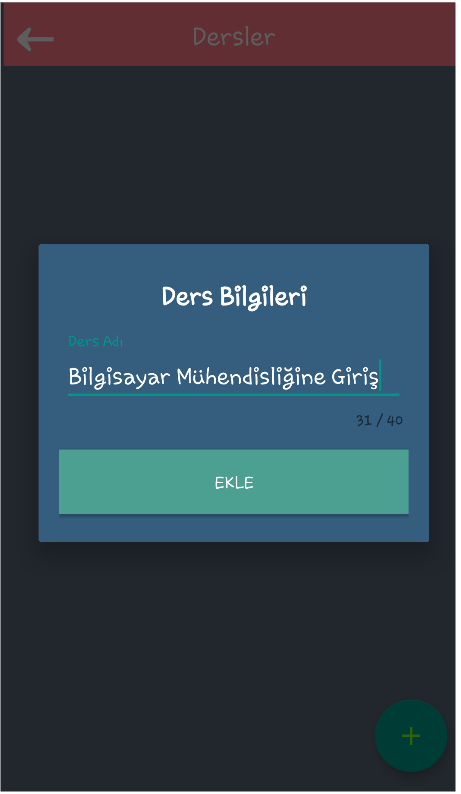
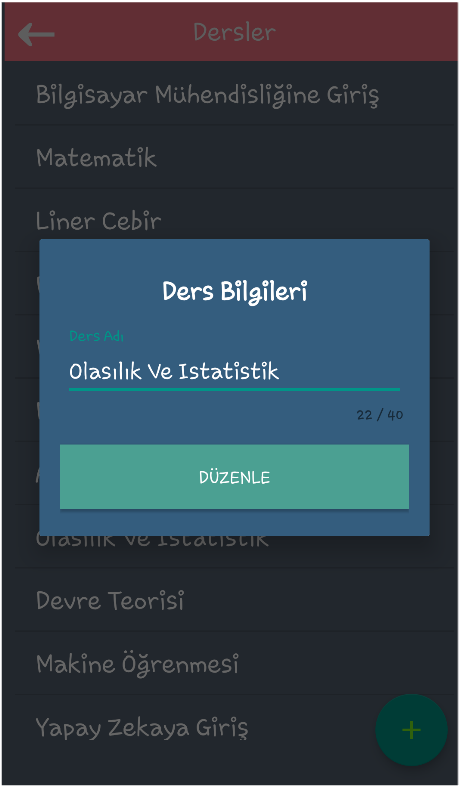
In the course adding menu, you can easily add, edit and delete courses.
Application Screenshots - Performing the Polling Operation
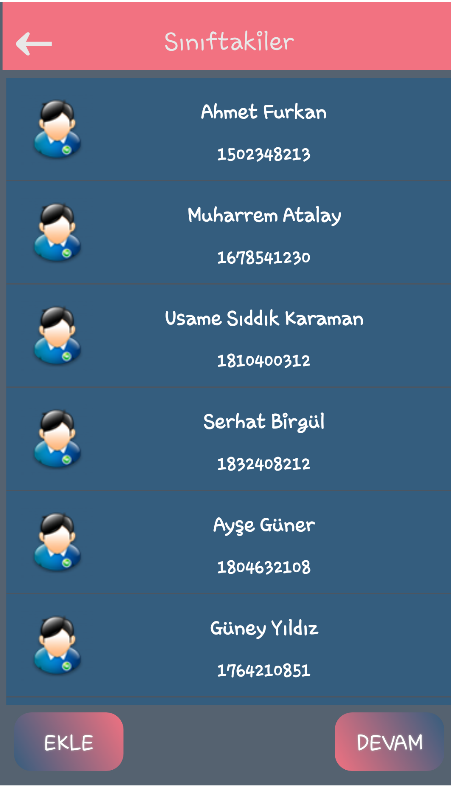
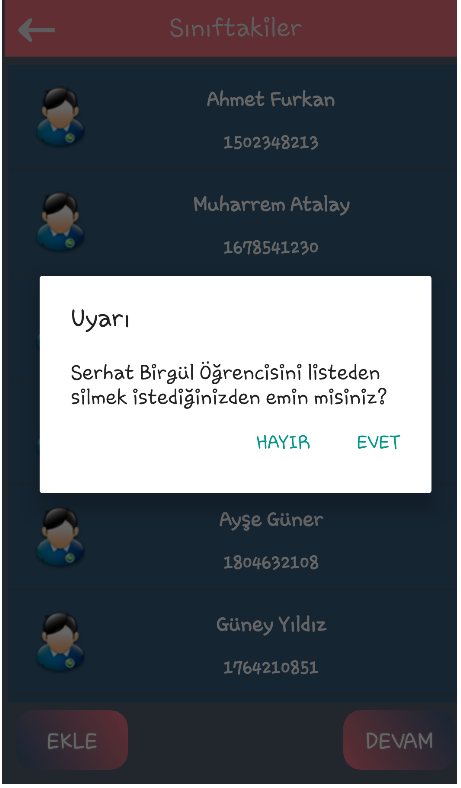
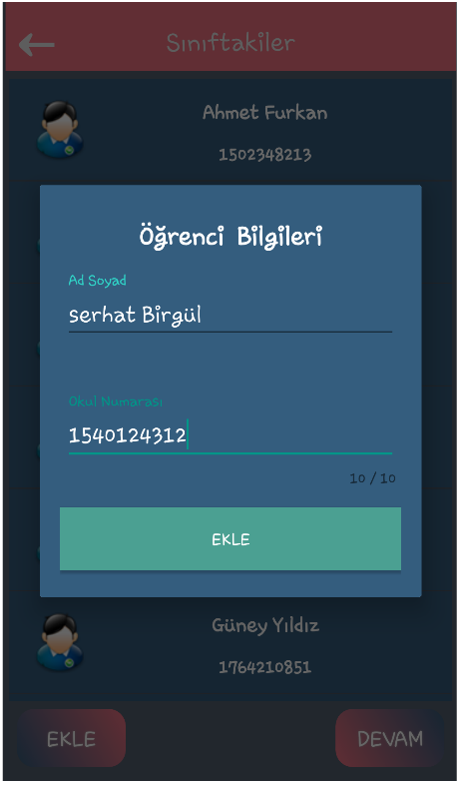
Once the classes are added to the app, we can now begin the attendance process. As seen above, Wi-Fi and Bluetooth scan the recorded content in the format specified above and add it to the list. We also display the student's name, surname, and school number as the information. You can remove a student from the attendance list by holding down on them. After the attendance process is complete, we manually add students who are present in the class but not Wi-Fi or Bluetooth. In this case, we add them to the attendance list either by entering the student's ID card or, as seen in the image, manually by entering the student's name, surname, and school number.
App Screenshots - Recording Attendance and Visualizing Classroom
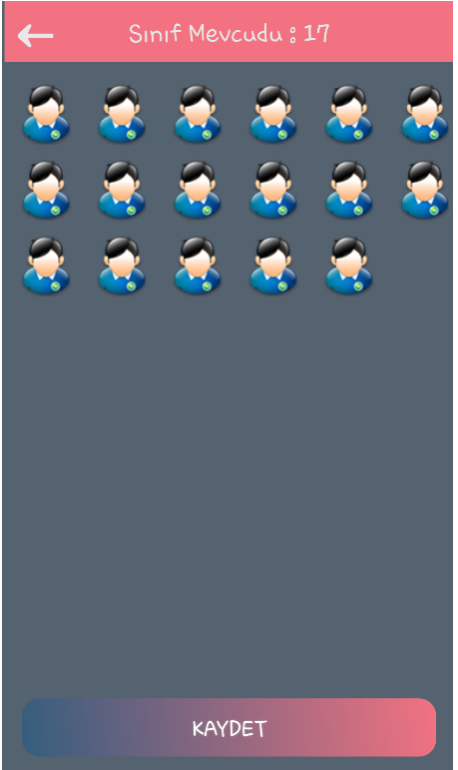
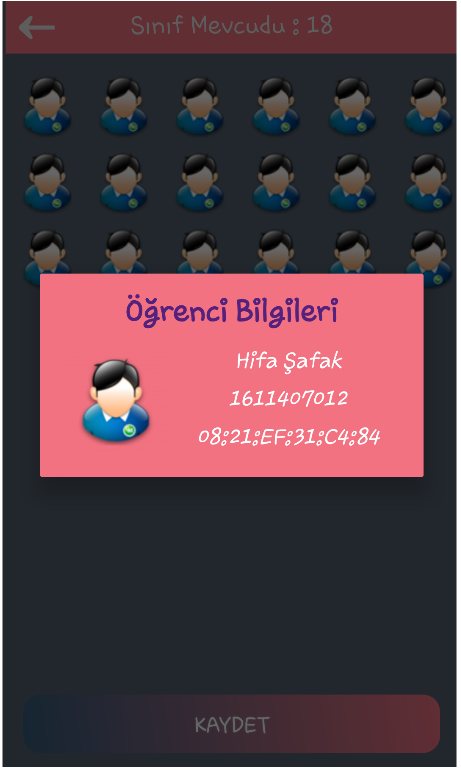
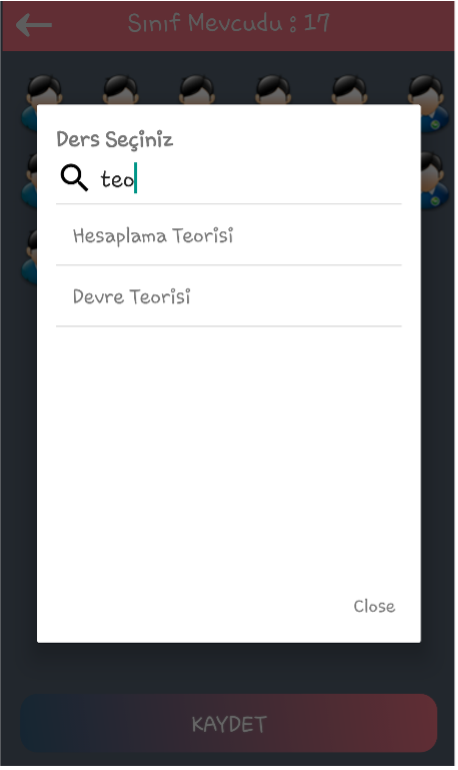
After the attendance record is complete, the next step is to display it in the classroom as an animation and enter the course it belongs to. After clicking the Save button, the previously saved courses are listed. After selecting the course with attendance, we proceed with the save process. The save is saved to your phone in Excel format.
Application Screenshots - Polling Forwarding (Sending) Operations
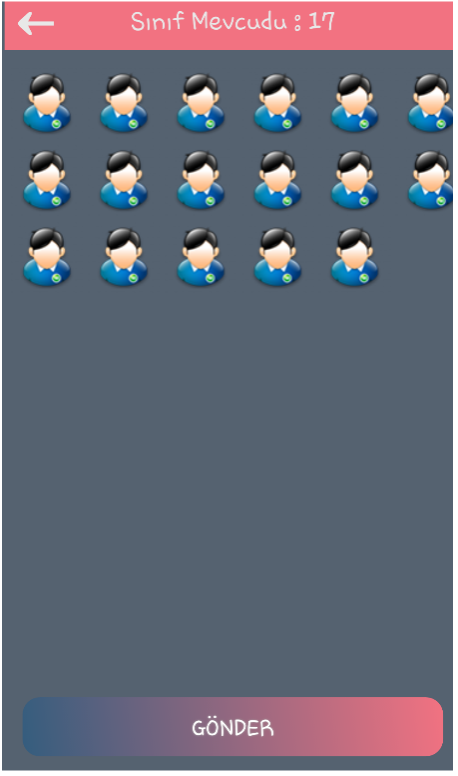
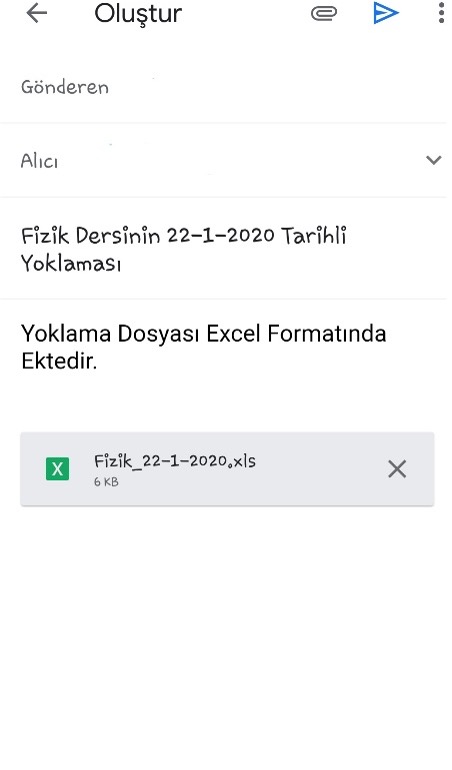
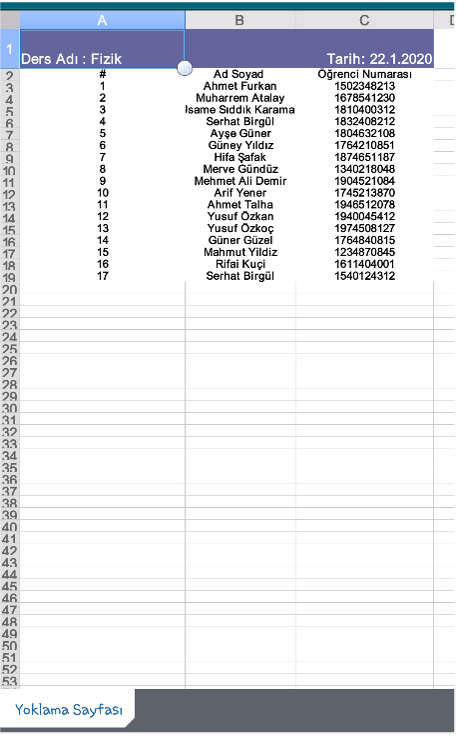
Once the attendance is recorded, the Save button changes to Send, making the Excel format saved on the device ready to be sent via email. The email application on the device opens and saves the attendance to Excel. The file format is also saved in the course name and date format to easily identify the day and course.
You can click for the application promotion.
The outline of the app is a bit long, but it was very enjoyable and exciting to learn about the use of different technologies for the first time while designing a project. If you have any questions about the app, please contact us.
